Orientation to the Classroom Environment
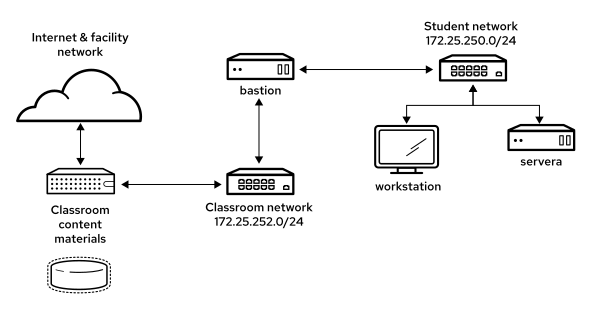
In this course, the main computer system for hands-on learning activities is workstation. Students also use another machine for these activities: servera. The two systems are in the lab.example.com DNS domain.
All student computer systems have a standard user account, student, which uses the password student. The root user password on all student systems is redhat.
Table 1. Classroom Machines
| Machine name | IP address | Role |
|---|---|---|
| bastion.lab.example.com | 172.25.250.254 | Gateway system to connect the student private network to the classroom server (must always be running) |
| classroom.example.com | 172.25.254.254 | Server that hosts the required classroom materials |
| workstation.lab.example.com | 172.25.250.9 | Graphical workstation for student use |
| servera.lab.example.com | 172.25.250.10 | Managed server "A" |
The primary function of the bastion machine is to act as a router between the network that connects the student machines and the classroom network. If the bastion machine is down, then other student machines can access only the systems that are on the individual student network.
Several systems in the classroom provide supporting services. Two servers, content.example.com and materials.example.com, are sources for software and lab materials in hands-on activities. Information about how to use these servers is provided in the instructions for those activities. The workstation virtual machine provides these activities. Both the classroom and bastion machines must always be running for the proper use of the lab environment.
Note
When logging in to the servera machine, you might see a message about activating the cockpit web console. You can ignore the message.
[student@workstation ~]$ ssh student@servera
Warning: Permanently added 'servera,172.25.250.09' (ECDSA) to the list of known hosts.
Activate the web console with: systemctl enable --now cockpit.socket

[student@servera ~]$
You are assigned remote computers in a Red Hat Online Learning (ROLE) classroom. Self-paced courses are accessed through a web application that is hosted at rol.redhat.com. Log in to this site with your Red Hat Customer Portal user credentials.
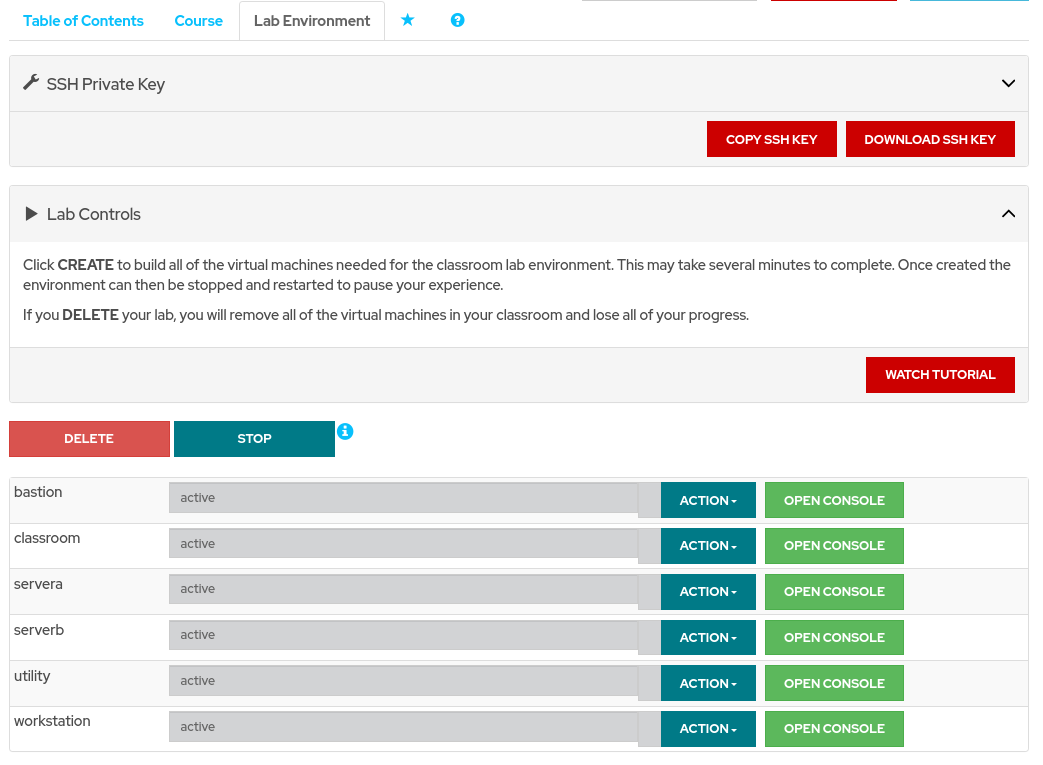
The virtual machines in your classroom environment are controlled through web page interface controls. The state of each classroom virtual machine is displayed on the Lab Environment tab.


Komentar
Posting Komentar
Punya pertanyaan atau pengalaman? Tulis di kolom komentar ya 😊